
X-plore File Manager for galaxy pocket and other Android devices

DESCRIPTION
Highlights:
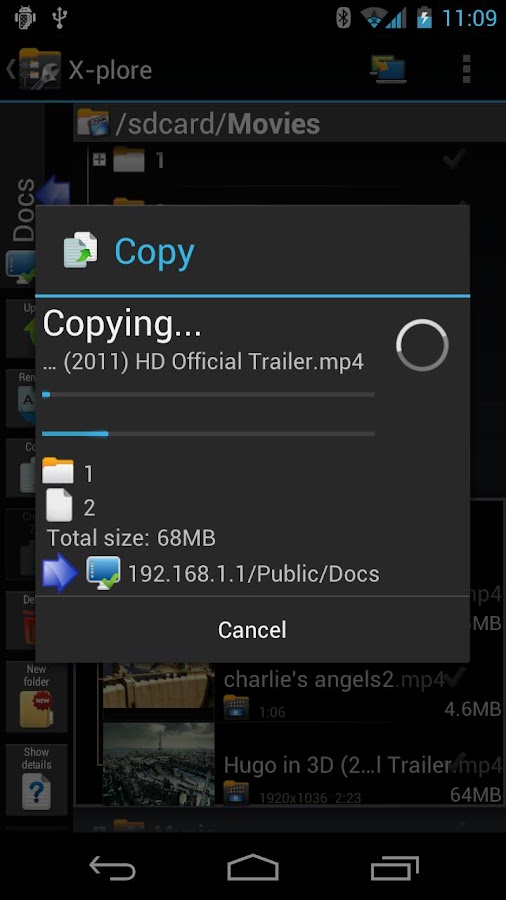
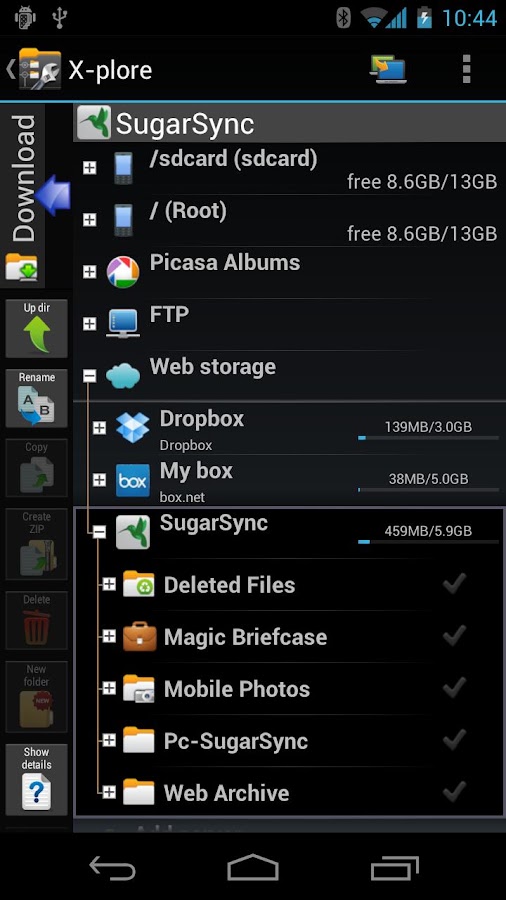
This is a dual-pane explorer, which means that there are two folders shown at same time, and common operation such as copying files are done from one pane to another.
And X-plore shows folder hierarchy in a tree view. This offers clear orientation on where in file system you currently are, and fast switching to other location.
Currently selected folder and files are highlighted, while other folders/files have slightly darker background.
You may explore internals of the device, and if you're power user and have your device rooted, you can make changes to system data - backup files, remove unwanted applications, etc.
If you're standard user, you may choose to hide internal memory from view and be sure not to mess with system.
You can comfortably see contents of your external memories, either be it built-in high capacity memory, external memory card, or possibly USB memory stick attached to your tablet. All these memory types are listed in main level, you don't need to search for their folders on the device.
Access to FTP and FTPS (secure FTP) servers is supported.
Multiple servers may be configured. All standard file operations can be done on FTP server.
X-plore can display shared folders on other computers in LAN (local area network).
The system allows access to shared folders on computers connected to LAN, or even remote server if it supports SMB protocol.
X-plore can access various web storage "Cloud" servers, and access their files.
You need to have account in supported web service, then you can access your files stored online through X-plore.
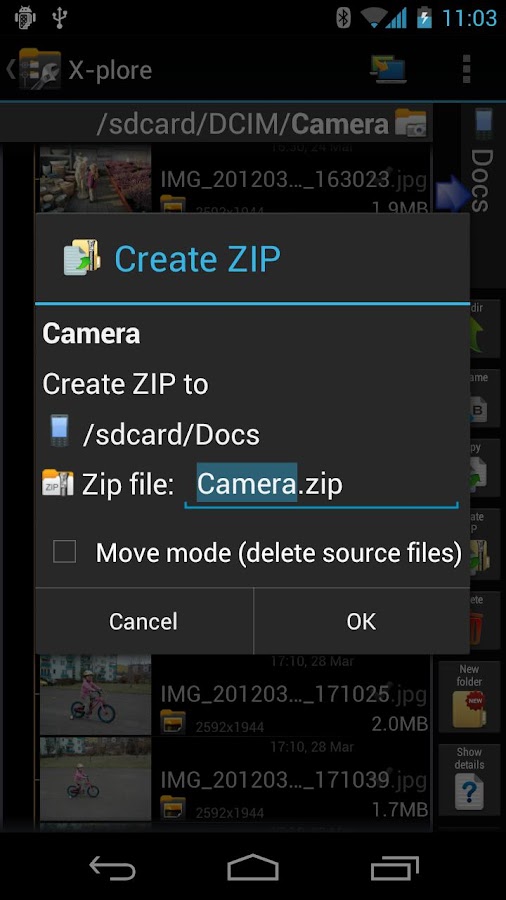
Main operations are related to managing files and folders - viewing, copying, moving, deleting, compressing to Zip, extracting, renaming, sharing, and more.
Picasa albums
X-plore can list images in Picasa albums, download them, create albums, upload and delete photos, edit captions.
SQLite database viewer
X-plore can show SQLite database files (those with .db extension) as expandable list of tables, each table containing list of rows and columns with database entries.
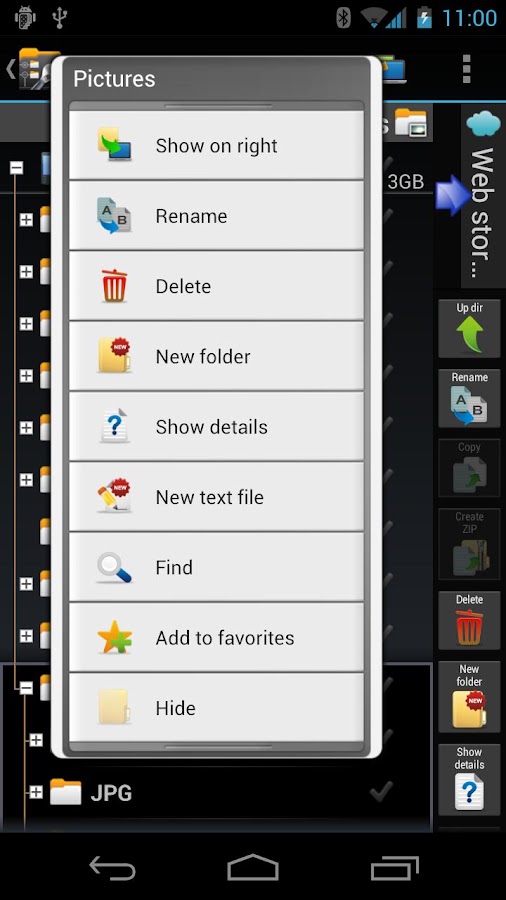
Main interaction is done by touch screen, clicking on folders or files to open files, or long-click to open context menu which contains options which can be done on particular clicked item, or multiple selected items.
Multi-selection allows to do operation on more files at once. Files can be selected by clicking check box. It is also possible to select all files in a folder, or clear selection, by clicking parent folder's check box.
Opening file may mean to use one of built-in viewer for most popular file types: images, audio, video and text.
Or you may configure X-plore to use system application for opening files, in which case system-predefined application that can open particular file is launched.
Archives (currently supported are Zip and Rar) are displayed as other folders. You may open them, see contents, and do standard operations that you'd do on files - rename, delete, copy from/to, etc.
Additional interaction is possible by button bar, which is between two panes, and is fully configurable. You may put buttons of your desired operations here, and change ordering.
SCREENSHOTS
G PLAY STORE DOWNLOAD : LINK
EXTERNAL(4SHARED) DOWNLOAD: LINK
ENJOY!!!!!!
NEED ANY ASSISTANCE JUST COMMENT BELO
DESCRIPTION
Highlights:
- Dual-pane tree view
- Root, FTP, SMB, Sqlite, Picasa, Zip, Rar explorer
- Cloud storage access: Google Drive™, Dropbox, Box.net, SkyDrive, Webdav, Yandex.disk, Ubuntu One, 4Sync, IDrive, SugarSync, Dump Truck, Copy.com, MegaCloud
- Favorite folders
- Built-in viewers for images, video, audio, text
- Hex viewer
- Fast Image viewer with zoom and slide to previous/next images in folder
- Thumbnails for images and video as well as for various file types (depending on associated application)
- Multi-selection - always available, yet not disturbing
- View APK files as ZIP
- Share - send files by Bluetooth, email, or whatever the device supports, from any location
- Configurable buttons and key shortcuts
- Seamless work with Zip (as if it was normal folder)
This is a dual-pane explorer, which means that there are two folders shown at same time, and common operation such as copying files are done from one pane to another.
And X-plore shows folder hierarchy in a tree view. This offers clear orientation on where in file system you currently are, and fast switching to other location.
Currently selected folder and files are highlighted, while other folders/files have slightly darker background.
You may explore internals of the device, and if you're power user and have your device rooted, you can make changes to system data - backup files, remove unwanted applications, etc.
If you're standard user, you may choose to hide internal memory from view and be sure not to mess with system.
You can comfortably see contents of your external memories, either be it built-in high capacity memory, external memory card, or possibly USB memory stick attached to your tablet. All these memory types are listed in main level, you don't need to search for their folders on the device.
Access to FTP and FTPS (secure FTP) servers is supported.
Multiple servers may be configured. All standard file operations can be done on FTP server.
X-plore can display shared folders on other computers in LAN (local area network).
The system allows access to shared folders on computers connected to LAN, or even remote server if it supports SMB protocol.
X-plore can access various web storage "Cloud" servers, and access their files.
You need to have account in supported web service, then you can access your files stored online through X-plore.
Main operations are related to managing files and folders - viewing, copying, moving, deleting, compressing to Zip, extracting, renaming, sharing, and more.
Picasa albums
X-plore can list images in Picasa albums, download them, create albums, upload and delete photos, edit captions.
SQLite database viewer
X-plore can show SQLite database files (those with .db extension) as expandable list of tables, each table containing list of rows and columns with database entries.
Main interaction is done by touch screen, clicking on folders or files to open files, or long-click to open context menu which contains options which can be done on particular clicked item, or multiple selected items.
Multi-selection allows to do operation on more files at once. Files can be selected by clicking check box. It is also possible to select all files in a folder, or clear selection, by clicking parent folder's check box.
Opening file may mean to use one of built-in viewer for most popular file types: images, audio, video and text.
Or you may configure X-plore to use system application for opening files, in which case system-predefined application that can open particular file is launched.
Archives (currently supported are Zip and Rar) are displayed as other folders. You may open them, see contents, and do standard operations that you'd do on files - rename, delete, copy from/to, etc.
Additional interaction is possible by button bar, which is between two panes, and is fully configurable. You may put buttons of your desired operations here, and change ordering.
SCREENSHOTS
G PLAY STORE DOWNLOAD : LINK
EXTERNAL(4SHARED) DOWNLOAD: LINK
ENJOY!!!!!!
NEED ANY ASSISTANCE JUST COMMENT BELO
Install Android 2.3.6 XXLF5 on Galaxy Pocket S5300 (Stock Firmware)
Samsung Galaxy Pocket S5300 can now be updated to Android 2.3.6 XXLF5 official firmware by Samsung. This phone is a pretty low end Samsung Android phone, but it also has a low price as compared to a few better ones. We cannot expect Samsung to bring Android 4.0 ICS on it at all. For now, you can install the official Android 2.3.6 XXLF5 software update on Galaxy Pocket.
As you read further, we will guide you through the entire process of how to update Galaxy Pocket GT-S5300 to Android 2.3.6 XXLF5 (United Kingdom) official firmware using ODIN. Make sure you backup all your data as given below because you will have to wipe everything in order to install this firmware. Let’s continue with the tutorial below.

Disclaimer: All the tools, mods or ROMs mentioned
below belong to their respective owners/developers. I (http://galaxypocketpirates.blogspot.in)
or the developers are not to be held responsible if you damage or brick
your device. We don’t have you on gun point to try out this tutorial 
This ROM is completely stock with no third-party changes or apps included in it. You can use this firmware to unroot your Android device with the official update.
Android 2.3.6 XXLF5 Firmware Details:
PDA: S5300XXLF5
CSC: S5300BTULF1
Version: 2.3.6
Date: 2012-07-03
Regions: Austria, Belgium, France, Germany, Hungary, Italy, Spain, United Kingdom
there are a few more things that you need to take care of.
1. You need to enable USB debugging mode. This helps to connect your Android phone with the PC. See here: How to Enable USB Debugging.
2. Your phone battery should be 80-85% charged. If your phone goes off suddenly because of battery, during flashing ROMs or installing mods and updates — your phone might go dead permanently. See here: How to Check Battery Percentage.
3. Backup all your important data that you might need as soon as your flash a new ROM, or make a backup for just in case, you never know when anything might go wrong. See below on how to backup data:
4. Your phone should be factory unlocked. Additional instructions for locked Android devices will be added in the tutorial for unlocking devices.
Now, let’s proceed with the tutorial on the next page and install Android 2.3.6 XXLF5 firmware on Galaxy Pocket S5300.
Please read every line carefully and make sure you read the entire tutorial once before actually performing it on your phone.

To Remember:
Complete Step-By-Step Instructions:
Step 1 - Download Android 2.3.6 S5300XXLF5 for Galaxy Pocket to your computer and extract the zip file. (No Download link. Sorry Hotfile Site Closed Working on this problem fast as well) Thx
Step 2 - Download ODIN v1.85 which will help you to install Android 2.3.6 on Samsung Galaxy Galaxy Pocket.
Step 3 - Switch OFF your phone. Now go to Download Mode. How? Press and hold the Volume Down + Home buttons together, and then press the Power button till you see the green Android robot.
Step 4 - Make sure you have your Galaxy Pocket USB drivers installed on your computer.
Step 5 - Open ODIN on your computer. Connect your phone to your computer while your phone is in the Download Mode.
Step 6 - If your phone is connected successfully, one of the ID:COM boxes will turn yellow with the COM port number. This step might take some time.
Step 7 - Now select the files that you have to flash/install on your phone. These files are to be found from the extracted files in Step 1.
Step 9 - Now click on the Start button in ODIN. Installation process will start and would take a few minutes to complete.
Step 10 - After the installation is completed, your phone will restart. After you see the home screen, unplug your phone from the computer.
That’s it. Your Samsung Galaxy Pocket has now been updated to Android 2.3.6 build XXLF5 software update. Go to Settings > About phone to verify.
Samsung Galaxy Pocket S5300 can now be updated to Android 2.3.6 XXLF5 official firmware by Samsung. This phone is a pretty low end Samsung Android phone, but it also has a low price as compared to a few better ones. We cannot expect Samsung to bring Android 4.0 ICS on it at all. For now, you can install the official Android 2.3.6 XXLF5 software update on Galaxy Pocket.
As you read further, we will guide you through the entire process of how to update Galaxy Pocket GT-S5300 to Android 2.3.6 XXLF5 (United Kingdom) official firmware using ODIN. Make sure you backup all your data as given below because you will have to wipe everything in order to install this firmware. Let’s continue with the tutorial below.
This ROM is completely stock with no third-party changes or apps included in it. You can use this firmware to unroot your Android device with the official update.
Android 2.3.6 XXLF5 Firmware Details:
PDA: S5300XXLF5
CSC: S5300BTULF1
Version: 2.3.6
Date: 2012-07-03
Regions: Austria, Belgium, France, Germany, Hungary, Italy, Spain, United Kingdom
there are a few more things that you need to take care of.
1. You need to enable USB debugging mode. This helps to connect your Android phone with the PC. See here: How to Enable USB Debugging.
2. Your phone battery should be 80-85% charged. If your phone goes off suddenly because of battery, during flashing ROMs or installing mods and updates — your phone might go dead permanently. See here: How to Check Battery Percentage.
3. Backup all your important data that you might need as soon as your flash a new ROM, or make a backup for just in case, you never know when anything might go wrong. See below on how to backup data:
- Backup your SMS messages.
- Backup Contacts, Gmail and Google Data.
- Backup Call History.
- Backup WhatsApp Messages.
- Backup APN Settings: GPRS, 3G, MMS Settings.
4. Your phone should be factory unlocked. Additional instructions for locked Android devices will be added in the tutorial for unlocking devices.
Now, let’s proceed with the tutorial on the next page and install Android 2.3.6 XXLF5 firmware on Galaxy Pocket S5300.
How to Install Android 2.3.6 XXLF5 on Galaxy Pocket S5300
We have put together a detailed step-by-step instructions guide on how to update Samsung Galaxy Pocket S5300 to Android 2.3.6 XXLF5 Gingerbread. If you are used to installing official updates through ODIN on Samsung Galaxy devices, then this should not be any different for you.Please read every line carefully and make sure you read the entire tutorial once before actually performing it on your phone.
To Remember:
- This tutorial is only for Samsung Galaxy Pocket S5300. Please don’t try this on any other variants of the phone.
- This is an official firmware update by Samsung, not a modified or custom ROM.
- Make sure you backup all your data in your phone before proceeding.
Complete Step-By-Step Instructions:
Step 1 - Download Android 2.3.6 S5300XXLF5 for Galaxy Pocket to your computer and extract the zip file. (No Download link. Sorry Hotfile Site Closed Working on this problem fast as well) Thx
Step 2 - Download ODIN v1.85 which will help you to install Android 2.3.6 on Samsung Galaxy Galaxy Pocket.
Step 3 - Switch OFF your phone. Now go to Download Mode. How? Press and hold the Volume Down + Home buttons together, and then press the Power button till you see the green Android robot.
Step 4 - Make sure you have your Galaxy Pocket USB drivers installed on your computer.
Step 5 - Open ODIN on your computer. Connect your phone to your computer while your phone is in the Download Mode.
Step 6 - If your phone is connected successfully, one of the ID:COM boxes will turn yellow with the COM port number. This step might take some time.
Step 7 - Now select the files that you have to flash/install on your phone. These files are to be found from the extracted files in Step 1.
- Click on ‘PDA’ and select file with ‘CODE’ in its name.
- Click on ‘Phone’ and select file with ‘MODEM’ in its name. Ignore this step if there is no such file.
- Click on ‘CSC’ and select file with CSC’ in its name. Ignore this step if there is no such file.
- Click on ‘PIT’ and select the .pit file. Ignore this step if there is no such file.
Step 9 - Now click on the Start button in ODIN. Installation process will start and would take a few minutes to complete.
Step 10 - After the installation is completed, your phone will restart. After you see the home screen, unplug your phone from the computer.
That’s it. Your Samsung Galaxy Pocket has now been updated to Android 2.3.6 build XXLF5 software update. Go to Settings > About phone to verify.
Cynogenmod 9.1 for galaxy pocket (PORT)

DESCRIPTION
CyanogenMod is based on the Android Open Source Project with extra contributions from many people within the Android community. It can be used without any need to have any Google application installed. CyanogenMod does still include various hardware-specific code, which is also slowly being open-sourced anyway.
So, here it comes. Cyanogenmod 9 now is much closer to a stable release, thanks to bieltv.3 and broadcom, but till now, its not. I and ImBJ worked hard to get this working, so don't say this-that not working. The new drivers by broadcom have been implemented in the rom by bieltv.3 and thus the rom is super smooth.
Build 1:
Working:
Call, 3G, 2G
Messaging
HW or EGL (Can play games)
Bootanimation
WiFi
Bluetooth
Gallery
Screenshot
Internal SD and external sd
CRT animation
Rotation Animation (as changing view manually)
and everything except the bugs
Bugs:
Internet on 3G
Audio
Camera
Rotation
USB Storage
Instructions:
Go to CWM
Flash cm9
wipe data
Reboot
You will see that network do not work so again go to CWM
Flash imei fix
Reboot
Go to CWM again
Flash update patch
Done!
Warning:
Don't use any other kernel or the bootanimation won't work. A compatible kernel is provided in the rom
Credits:
Bieltv.3 and team BROADCOMCM
Jynalek
IMBJ and team Dark-Droids
akhbh
SCREENSHOTS


Cyanogenmod 9.1 download:
1st PART
2nd PART
3rd PART
4th PART
5th PART
6th PART
7th PART
8th PART
9th PART
10th PART
11th PART
12th PART
UPDATE PATCH: Fixed white screen and Can control brightness : LINK
IMEI : LINK
DESCRIPTION
CyanogenMod is based on the Android Open Source Project with extra contributions from many people within the Android community. It can be used without any need to have any Google application installed. CyanogenMod does still include various hardware-specific code, which is also slowly being open-sourced anyway.
So, here it comes. Cyanogenmod 9 now is much closer to a stable release, thanks to bieltv.3 and broadcom, but till now, its not. I and ImBJ worked hard to get this working, so don't say this-that not working. The new drivers by broadcom have been implemented in the rom by bieltv.3 and thus the rom is super smooth.
Build 1:
Working:
Call, 3G, 2G
Messaging
HW or EGL (Can play games)
Bootanimation
WiFi
Bluetooth
Gallery
Screenshot
Internal SD and external sd
CRT animation
Rotation Animation (as changing view manually)
and everything except the bugs
Bugs:
Internet on 3G
Audio
Camera
Rotation
USB Storage
Instructions:
Go to CWM
Flash cm9
wipe data
Reboot
You will see that network do not work so again go to CWM
Flash imei fix
Reboot
Go to CWM again
Flash update patch
Done!
Warning:
Don't use any other kernel or the bootanimation won't work. A compatible kernel is provided in the rom
Credits:
Bieltv.3 and team BROADCOMCM
Jynalek
IMBJ and team Dark-Droids
akhbh
SCREENSHOTS
Cyanogenmod 9.1 download:
1st PART
2nd PART
3rd PART
4th PART
5th PART
6th PART
7th PART
8th PART
9th PART
10th PART
11th PART
12th PART
UPDATE PATCH: Fixed white screen and Can control brightness : LINK
IMEI : LINK
PocketJB ROM for galaxy pocket
Features :
JB UI theme
JB theme Contacts
JB theme Message
JB Settings
JB Holo theme Launcher
JB theme Dialer
JB theme FM Radio
JB Alarm Clock theme
JB theme Task Manager
JB theme Calculadorw
JB Keyboard + theme Stock Samsung Keyboard
Default Lock JB theme
JB theme state with brightness control , More Switches , Profile Picture , bandwidth options .
Holo Locker added to the settings .
Memo Wizard mod as standard Memo App
Mod Chrome Browser
Rooted Superuser v.3.0.7 ...
V.4.5.10 Google Play Store
Free Root Browser as the default file manager
30 direct Wallpapers built including new versions of Android wallpapers
Extended Power Menu
6 lockscreens (disable Holo Locker to use it .. )
Ad- free
Several Tweaks build.prop added
And much more ... Feel the JB in GB
SCREENSHOTS


Suggestions / bugs :Need to fix a little more black on black text
.The battery icon on first boot ? Open Settings >> Settings >> PocketJB battery icon themes . And apply any of 21 styles battery icon
Tip : You can reduce key keyboard height . Layout height & key set for 80 - 90Configurações Open >> Locale and text >> Android >> Keyboard >> Vertical layout .Installation tutorial:1 - Connect your device to your PC and copy the ROM and internal memory2 - Unplug the unit
3 - Press and hold Home + Power + Volume button [ + ] all start at the same time in recovery mode
4 - Select apply update from SD card
5 - Select the ClockworkMod
6 - Select Wipe data and factory reset Wipe cache partition
7 - Go to install zip from sdcard , then choose zip from sdcard
8 - And select the file ( rom ) you went to the internal memory9 - Wait for the installation to the end 10 - Reboot
Credits :
[Guide ] About Settings Menu Pic by iamareebjamal
[Guide ] For the status bar 4.2.2 ROM Go by SpaceCaker
[Guide ] ICS lock screen pattern by iamareebjamal
[Guide ] Pic by Owner Mod b16h22
Home Jelly Mod Wallpaper by bobakazooboy on deviantart.com
Switch 15 & 6 Lockscreens by Alucard1989pl
Android 4.3 Boot Animation collected by DamnTarget
OGBatteryMod Osama Gharib
EDT Tweaks by the development team Einherjar
PocketJB parameters developed by me with the help of appinventor.mit.edu
Virtuous studio ten recompile apks -
Notepad + + - Edit xml , smali
ZipSigner - Signature zip files Roma
Adobe Photoshop - Photo Editing
7zip and WinRAR - Resource Extraction
All Search Tool - Fast search for files on my PC
QtADB Tool - File Transfer ADB
wallpaperswide.com - Wallpapers
www.android.com / KitKat versions Wallpaper Android screen -
DOWNLOAD : LINK
Features :
JB UI theme
JB theme Contacts
JB theme Message
JB Settings
JB Holo theme Launcher
JB theme Dialer
JB theme FM Radio
JB Alarm Clock theme
JB theme Task Manager
JB theme Calculadorw
JB Keyboard + theme Stock Samsung Keyboard
Default Lock JB theme
JB theme state with brightness control , More Switches , Profile Picture , bandwidth options .
Holo Locker added to the settings .
Memo Wizard mod as standard Memo App
Mod Chrome Browser
Rooted Superuser v.3.0.7 ...
V.4.5.10 Google Play Store
Free Root Browser as the default file manager
30 direct Wallpapers built including new versions of Android wallpapers
Extended Power Menu
6 lockscreens (disable Holo Locker to use it .. )
Ad- free
Several Tweaks build.prop added
And much more ... Feel the JB in GB
SCREENSHOTS
Suggestions / bugs :Need to fix a little more black on black text
.The battery icon on first boot ? Open Settings >> Settings >> PocketJB battery icon themes . And apply any of 21 styles battery icon
Tip : You can reduce key keyboard height . Layout height & key set for 80 - 90Configurações Open >> Locale and text >> Android >> Keyboard >> Vertical layout .Installation tutorial:1 - Connect your device to your PC and copy the ROM and internal memory2 - Unplug the unit
3 - Press and hold Home + Power + Volume button [ + ] all start at the same time in recovery mode
4 - Select apply update from SD card
5 - Select the ClockworkMod
6 - Select Wipe data and factory reset Wipe cache partition
7 - Go to install zip from sdcard , then choose zip from sdcard
8 - And select the file ( rom ) you went to the internal memory9 - Wait for the installation to the end 10 - Reboot
Credits :
[Guide ] About Settings Menu Pic by iamareebjamal
[Guide ] For the status bar 4.2.2 ROM Go by SpaceCaker
[Guide ] ICS lock screen pattern by iamareebjamal
[Guide ] Pic by Owner Mod b16h22
Home Jelly Mod Wallpaper by bobakazooboy on deviantart.com
Switch 15 & 6 Lockscreens by Alucard1989pl
Android 4.3 Boot Animation collected by DamnTarget
OGBatteryMod Osama Gharib
EDT Tweaks by the development team Einherjar
PocketJB parameters developed by me with the help of appinventor.mit.edu
Virtuous studio ten recompile apks -
Notepad + + - Edit xml , smali
ZipSigner - Signature zip files Roma
Adobe Photoshop - Photo Editing
7zip and WinRAR - Resource Extraction
All Search Tool - Fast search for files on my PC
QtADB Tool - File Transfer ADB
wallpaperswide.com - Wallpapers
www.android.com / KitKat versions Wallpaper Android screen -
DOWNLOAD : LINK